
Well, that’s a question isn’t it!
If you are a complete beginner to Photoshop then “Welcome!” You have certainly come to the right page.
Adobe Photoshop has lots of tools you can use to edit a photograph, create imagery and well, just get creative. It is a technical program when you don’t know how to use it but fear not we will start with the basics..
Here’s the first 6 steps to editing a photograph in Photoshop to get you started!
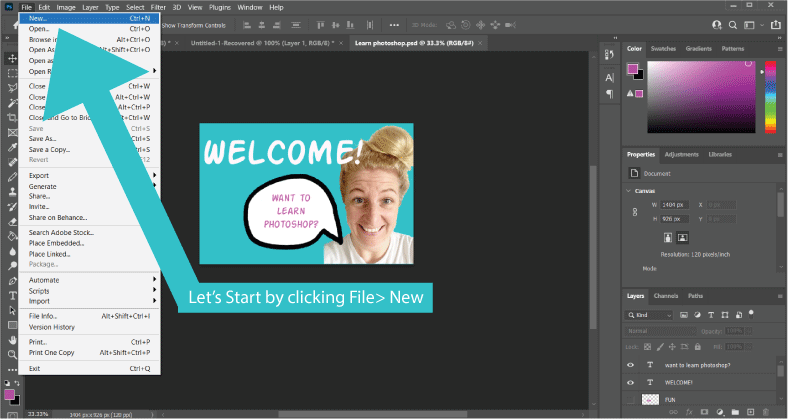
- File > New
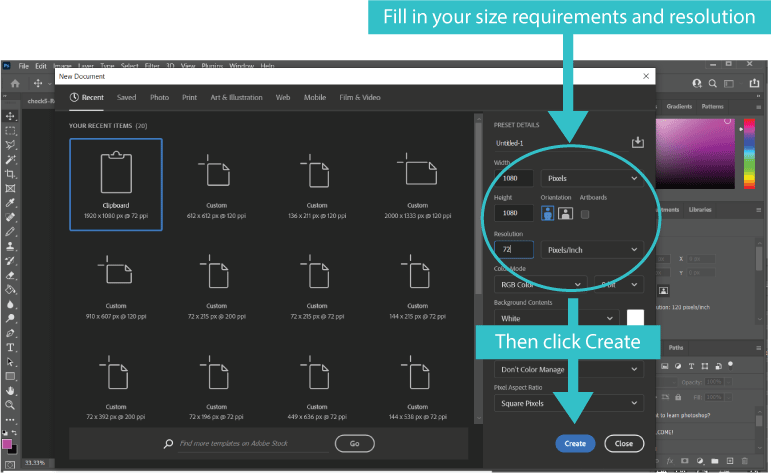
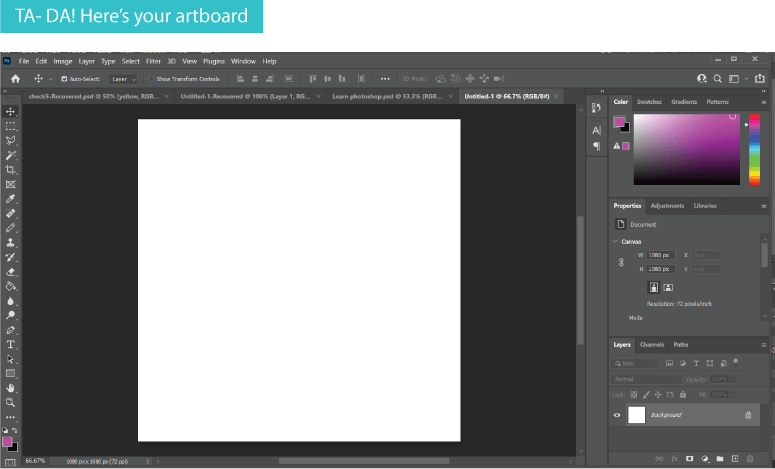
2. Enter the image size Height and Width, select portrait or landscape and then select the resolution (recommended will be 72pixels/inch) > Create
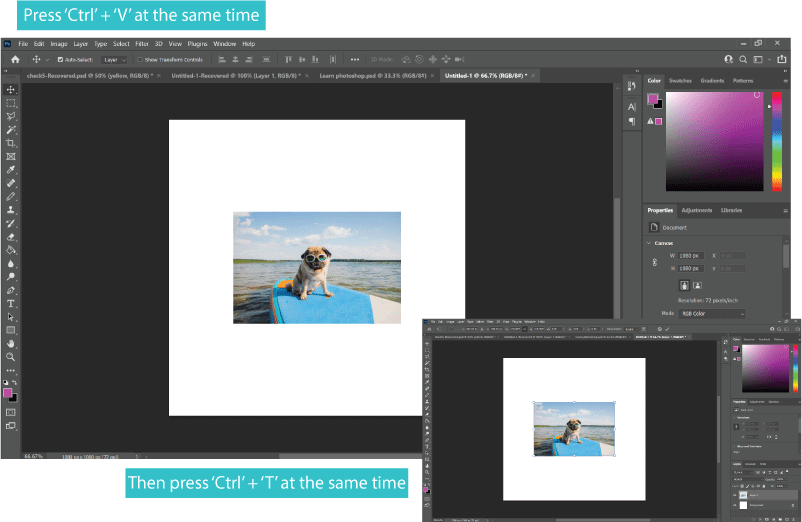
3. Use copy and paste (Ctrl+c, Ctrl+v) to insert your image, or alternatively drag the photo file from your saved location to photoshop.
To change the size of the photo click Ctrl+T, this will add a box around the image as per the insert below.
4. Press Alt and use the cursor in the corner of the picture to resize it up or down as required. By holding Alt as you do this it keeps the proportion of the photo.

5. You can then start making edits to your photo from changing the colour levels, the brightness, exposure or contrast. You can make it Black and White, you can turn it into a paiting effect, stylise it or completely distort the image.
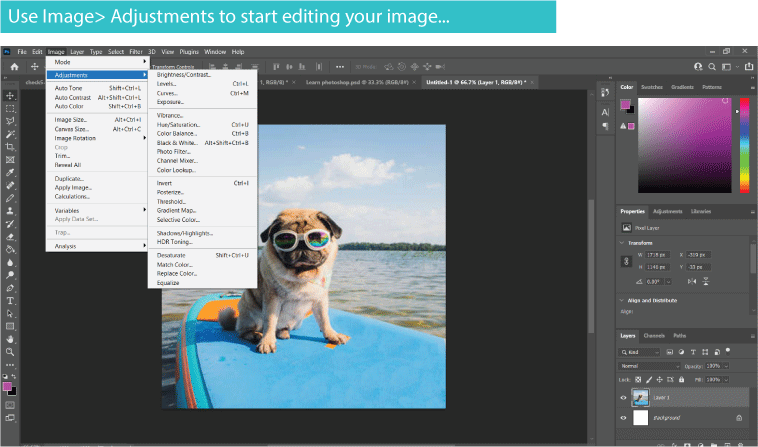
You can even draw over the top, add text and make it a fun image for a Birthday card or marketing image – the options really are endless and we can teach you them all!
We hope you enjoyed the first steps to Photoshop with us and learnt something straight away. There is so much more to learn so just Click here to purchase our hourly training sessions for Photoshop or Illustrator
Leave us a comment below, share with your friends or sign up to our blog for more tips and tricks.
We look forward to teaching you soon.
Luella’s Design Studio




 Design Services
Leave a comment